Gemma 4 Guides
Gemma 4 on iPhone and iOS: Offline Setup Guide

If you are searching for Gemma 4 on iPhone, the real question is not whether it can launch. The real question is whether it feels useful enough for everyday work.
The short answer is yes: Gemma 4 on iPhone is now a real, first-party path through Google AI Edge Gallery. You do not need a cloud subscription, you do not need an API key, and you do not need to build your own app before you try it.
This guide explains what changed, which models fit the iOS route best, which iPhones are strong candidates, how to set everything up, and where the mobile experience still has clear limits compared with a Mac or desktop runtime.
Why Gemma 4 on iPhone matters
The main reason Gemma 4 on iPhone matters is privacy plus convenience. A local model on iOS gives you a way to test prompts, summarize notes, inspect images, and run short reasoning tasks without sending data to a server.
That mobile setup is especially attractive for:
- private note summarization
- offline travel or field work
- quick image or screenshot analysis
- on-device transcription and translation
- developers who want to understand the mobile Gemma 4 experience before building with it
If your use case depends on large-scale coding, long document synthesis, or maximum reasoning quality, this is not the final answer. But as a portable local AI experience, the current iOS path is much more useful than earlier mobile LLM experiments.
Which Gemma 4 models support iPhone and iOS
Today, Gemma 4 on iPhone is centered on the edge models:
| Model | Best use | Why it matters on iOS |
|---|---|---|
E2B |
Older iPhones, faster replies | Lowest memory pressure and best chance of smooth local use |
E4B |
Newer iPhones and iPads | Better reasoning quality with a still-manageable footprint |
The larger 26B A4B and 31B models are not realistic options here. They are meant for higher-memory local systems or hosted environments. If your goal is a smooth iPhone workflow, you should think in terms of E2B and E4B only.
That is also why model choice matters so much. A good mobile setup does not start by downloading the biggest model. It starts by choosing the build that matches your device headroom.
Device requirements for Gemma 4 on iPhone
The safest way to approach Gemma 4 on iPhone is to map the model to the phone you actually own.
- iPhone 15 Pro / Pro Max: the best starting point for
E4B - iPhone 16 / 16 Pro: the most comfortable current setup for
E4B - Older iPhones: better candidates for
E2B - M-series iPads: strong devices for
E4B, especially if you want more sustained performance
In practical terms, the experience feels best on devices with newer Apple silicon and more memory headroom. Older phones can still run the edge models, but you should expect a narrower comfort zone:
- shorter prompts
- shorter outputs
- slower generation
- more benefit from the lighter
E2Bmodel
If you only remember one hardware rule, remember this: start smaller and move up only after the experience feels stable.
How to set up Gemma 4 on iPhone step by step
The easiest route is Google AI Edge Gallery.
1. Install Google AI Edge Gallery
Open the App Store, search for Google AI Edge Gallery, and install the app published by Google. This is the official route rather than a third-party wrapper.
2. Open the Models tab
After launch, go to the model management area. This is where you choose which build powers the local iOS experience on your device.
3. Download E2B or E4B
Use this rule of thumb:
- choose
E2Bif you want the safest first experience - choose
E4Bif you have a recent Pro iPhone or M-series iPad and want higher quality
For most people trying Gemma 4 on iPhone for the first time, E4B is the better result when the hardware supports it. For older hardware, E2B feels more responsive and less frustrating.
4. Start with a short test pack
Do not begin your first test with a giant prompt. Use a small set of representative tasks instead:
- summarize this note in 5 bullets
- explain the screenshot I uploaded
- translate this short audio clip
- answer this reasoning question in plain language
That gives you a much more honest read on whether this local mobile path fits your workflow.
What this iPhone setup can actually do
A good guide should separate the impressive parts from the realistic limits.
Here is where Gemma 4 on iPhone is genuinely useful:
- personal knowledge tasks where privacy matters
- document or screenshot understanding
- quick voice tasks while offline
- prompt testing when you want immediate local feedback
- lightweight multimodal workflows on the go
And here is where the mobile route still loses to desktop runtimes:
- long coding sessions
- large-context analysis with heavy output
- sustained multi-step agents
- high-throughput local API serving
- large-model quality expectations
That does not make it weak. It simply means you should evaluate it as a mobile local AI workflow, not as a substitute for a workstation running 26B or 31B.
Best practices for a smoother iOS experience
If you want Gemma 4 on iPhone to feel good in daily use, a few habits help immediately:
- Start with
E2BorE4B, not with desktop expectations. - Keep prompts focused instead of pasting giant documents first.
- Use offline use cases where local privacy is a real advantage.
- Turn on deeper reasoning only when the task actually needs it.
- Compare the same prompt on iPhone and desktop so you know what tradeoff you are making.
The biggest mistake is judging the mobile route against the wrong baseline. The right comparison is not "can it beat a 31B desktop model?" The right comparison is "does this make local AI genuinely usable on a phone?" On that standard, the answer is much more positive.
For developers: Gemma 4 on iPhone versus building your own app
If you are a developer, Gemma 4 on iPhone is useful for two reasons.
First, it gives you a fast way to validate the mobile inference experience before you write code. Second, it shows the real UX constraints that matter when you later integrate Gemma 4 into your own iOS product.
In other words, it is not only an end-user experience. It is also a preview layer for product decisions:
- which tasks feel good locally
- where latency becomes noticeable
- what model size feels worth it
- when offline AI changes the user value proposition
If you eventually need a local API, coding-agent workflow, or desktop-grade context handling, this phone-and-tablet workflow should lead into a Mac, Windows, Ollama, or llama.cpp setup rather than replace it.
Should you use it?
For many people, yes.
Choose Gemma 4 on iPhone if you want:
- offline AI on a phone or tablet
- local privacy for everyday prompts
- lightweight multimodal use
- a first-party mobile Gemma 4 experience
Skip it as your main route if you need:
- desktop coding throughput
- maximum reasoning quality
- large-model benchmarks
- a reusable local OpenAI-compatible API
Final verdict on Gemma 4 on iPhone
The best way to think about Gemma 4 on iPhone is as a very good mobile entry point into local Gemma 4, not as a replacement for bigger local runtimes. The setup is straightforward, the privacy story is strong, and the edge models are finally capable enough to make the local phone experience useful for real everyday tasks.
If your device is recent, start with E4B. If your device is older or speed matters most, start with E2B. That is the safest way to get value from the iOS route without overloading your expectations or your hardware.
Further reading
Related guides
Continue through the Gemma 4 cluster with the next guide that matches your current decision.
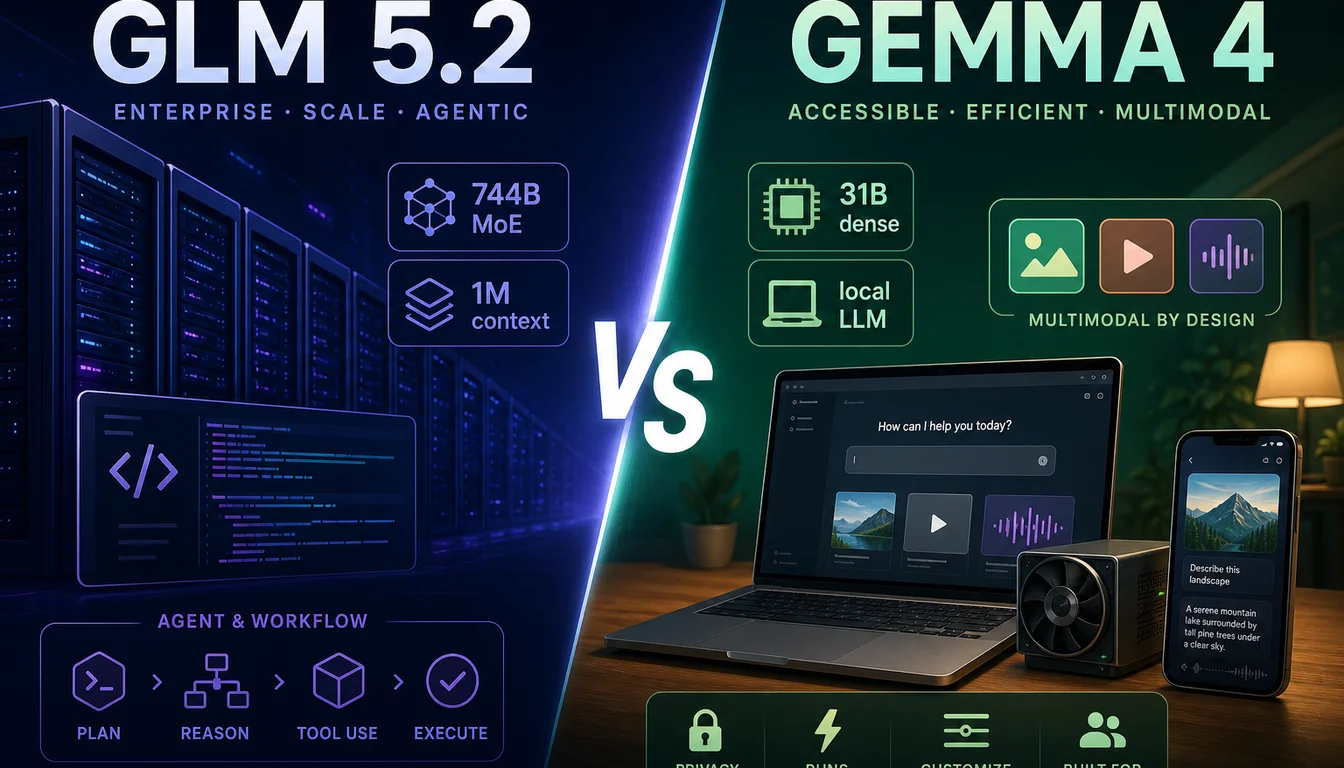
GLM 5.2 vs Gemma 4: Which Model Should You Run in 2026?
GLM 5.2 is the open-weights coding giant with a 1M context window; Gemma 4 is the local-friendly family from 3GB to 20GB VRAM. Here is how to choose.

Does DiffusionGemma Work in LM Studio? Current Status (June 2026)
Both LM Studio's llama.cpp and MLX engines fail to load DiffusionGemma in June 2026. Here is what the errors mean, where they are tracked, and which tools actually work.

Fix "unknown model architecture" for gemma4 and diffusion-gemma in llama.cpp
The gemma4 and diffusion-gemma architecture errors have different causes and different fixes. Treating them the same way will waste your time.
Still deciding what to read next?
Go back to the guide hub to browse model comparisons, setup walkthroughs, and hardware planning pages.